
One of the new features in XJDeveloper 4.2 allows you to limit the capabilities of individual JTAG-capable pins by applying Do Not Read, Do Not Drive and Do Not Read or Drive restrictions. Previously this kind of change would require you to edit the BSDL file, now such restrictions can be included as part of your project setup.
This feature is useful in situations where the silicon’s behaviour does not exactly match its BSDL file, or in certain niche situations where you need to prevent particular JTAG pins from driving or reading, for example to prevent an I/O pin outputting on a net with a different voltage domain.
These restrictions are set on the JTAG Chain Screen; When adding or editing a JTAG device click the new Pin Restrictions… button in the Configure JTAG Device dialog to launch the new Pin Restrictions dialog:
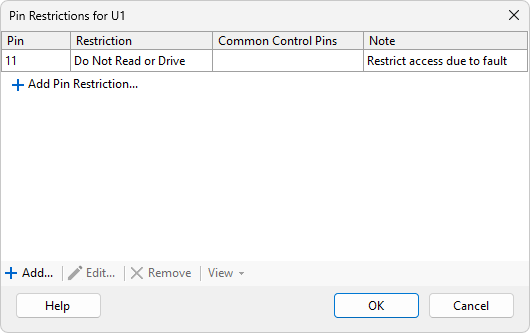
The Pin Restrictions dialog where all pin restrictions for a given JTAG device are managed.
From here you can add, edit and remove pin restrictions. The standard view options for Explorer, Layout Viewer and Schematic Viewer are also available by right-clicking on a pin, or selecting the relevant option from the View menu.
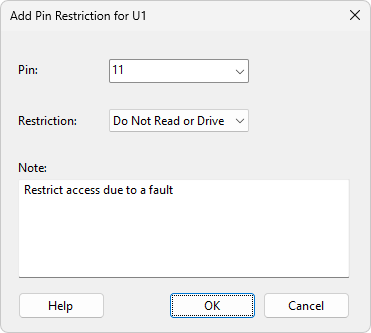
Dialog for specifying the restriction to apply to a given JTAG device pin.
When adding or editing a pin restriction type the required pin number in the top box, and choose the required restriction from the selection below.
Once added these restrictions apply to all aspects of the project. If a pin has restrictions defined it will be marked as “Restricted” in Explorer.
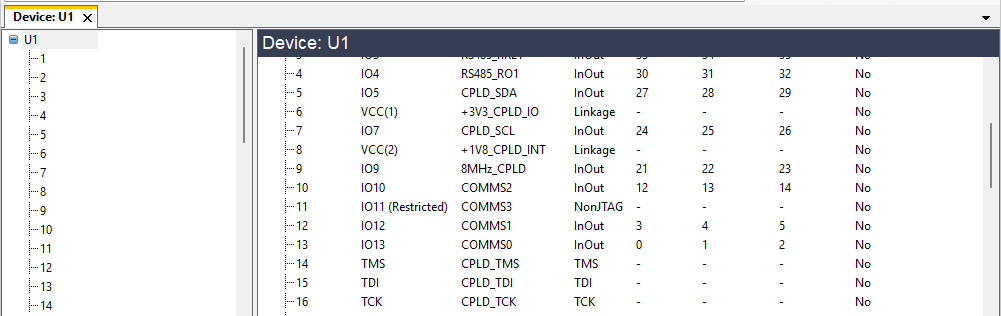
Screenshot of Explorer showing a restricted JTAG device pin.
Leave A Comment